Geofencing API Integration: Developer Guide

Geofencing API Integration: Developer Guide
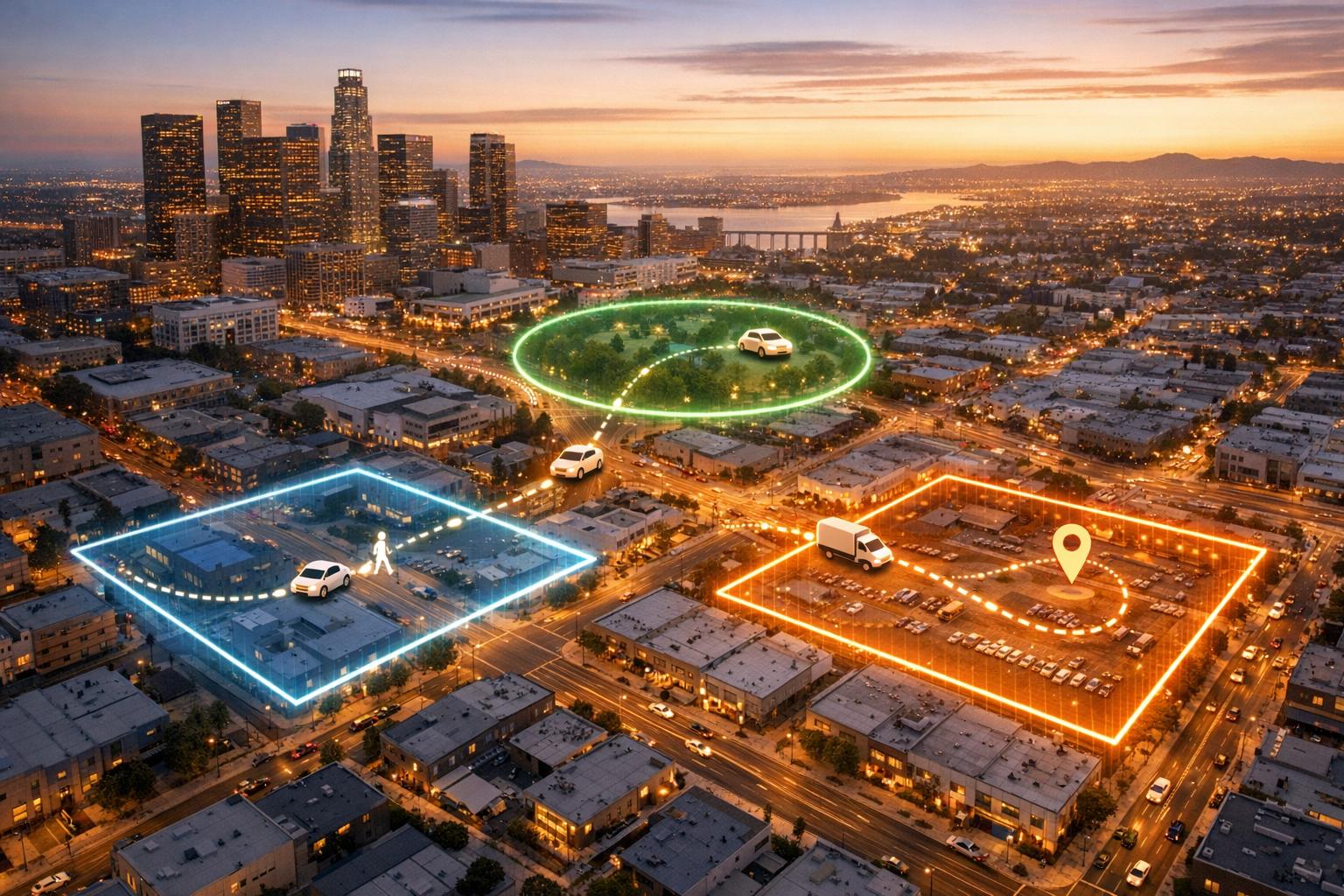
Geofencing APIs allow apps to define virtual boundaries (geofences) around specific locations. When a device enters, exits, or stays within these boundaries, certain actions can be triggered, like sending notifications or logging events. This event-driven model is more energy-efficient than continuous GPS tracking, making it ideal for tasks like proximity alerts or automated check-ins.
Key points include:
- Event Types: Geofences trigger ENTER, EXIT, or DWELL events.
- Accuracy: A radius of 100–150 meters is recommended for reliable results.
- Permissions: Android apps need
ACCESS_FINE_LOCATIONandACCESS_BACKGROUND_LOCATION. - Limitations: Each app can manage up to 100 geofences per user.
- Use Cases: Retail notifications, fleet tracking, logistics, and vehicle data integration.
Pairing geofencing with vehicle data APIs (like CarsXE) enables advanced applications, such as retrieving VIN details or checking recalls when a vehicle enters a dealership. Proper setup includes configuring geofence parameters, handling events with PendingIntent, and ensuring geofences persist after device reboots.
This guide simplifies the integration process, helping developers create efficient, location-aware applications.
Geofencing | The ultimate tutorial | Create and monitor geofences
How Geofencing Technology Works
Geofencing vs Continuous GPS Tracking: Battery Usage and Accuracy Comparison
Basic Geofencing Concepts
A geofence is essentially a virtual boundary mapped out using geographic coordinates. You define it with latitude and longitude, then decide on the shape - a circular zone with a set radius or a polygon with multiple points. The system keeps track of these boundaries using GPS, Wi-Fi, cellular networks, and sometimes RFID, to detect when a device enters or leaves the area.
There are three main types of geofence events: ENTER, EXIT, and DWELL. An ENTER event triggers when a device crosses into the geofence, while an EXIT event activates when it leaves. DWELL events are a bit different - they only fire after the device stays within the boundary for a specified period, which helps cut down on unnecessary notifications from quick crossings.
On Android, each app can manage up to 100 geofences per user. To ensure accuracy, it’s recommended to use a radius of at least 100–150 meters, as Wi-Fi-based location accuracy typically falls between 20 and 50 meters. In less populated areas, accuracy can drop to several hundred meters.
Geometry Type Definition Ideal Use Case Circle A central point with a specific radius around it Simple proximity alerts or tracking points of interest Polygon A custom shape defined by multiple points, which can include "holes" Complex boundaries like parks or industrial yards MultiPolygon A collection of polygons treated as one geofence Monitoring multiple, separate areas simultaneously
Geofencing vs. Continuous GPS Tracking
Geofencing works on an event-driven model, meaning it only processes data when a device crosses a boundary. This makes it energy-efficient, as it uses low-power sensors and network location providers instead of relying on constant GPS activity. On the other hand, continuous GPS tracking streams location data nonstop, which drains the battery faster and requires more processing power.
Feature Geofencing Continuous GPS Tracking Battery Usage Low; activates only during transitions High; requires constant GPS and CPU power Data Processing Event-based; processes only on boundary crossings Continuous; streams location data constantly Accuracy Moderate (20–50 meters via Wi-Fi/Cell) High (satellite-based, often road-snapped) Primary Use Case Proximity alerts, automated check-ins Turn-by-turn navigation, detailed route histories
Geofencing is ideal for tasks that don’t require real-time tracking, such as sending notifications or automating actions when a device enters or leaves a specific area. Alerts typically arrive within 2 minutes of movement, though stationary devices may experience up to 6 minutes of delay. For applications like navigation or route logging, continuous GPS tracking is the better fit despite its higher power consumption.
Common Uses for Geofencing
Geofencing plays a big role in industries like automotive, logistics, retail, and transportation. For example, fleet managers can create no-go zones around restricted areas, receiving instant alerts if a vehicle crosses into them. Service centers can automate check-ins when a vehicle enters a designated area, simplifying workflows.
In logistics, geofences around loading docks help monitor truck arrivals and departures. When a delivery vehicle enters the zone, the system can log the time and notify warehouse staff automatically. Retailers also use geofencing to engage customers - sending special offers when they enter a geofenced area or alerting curbside pickup teams when a customer arrives.
Transportation apps like ride-sharing services combine geofencing with real-time data to improve efficiency. By tracking vehicles as they enter predefined areas like airports or train stations, these apps can streamline driver dispatch and reduce wait times, all without the energy drain of continuous GPS tracking. Up next, we’ll dive into how to set up geofencing APIs for your application.
Setting Up for Geofencing API Integration
Required Permissions and Platform Settings
Before diving into the code, there are some critical permissions and settings to configure. On Android, geofencing requires ACCESS_FINE_LOCATION, as it provides precise location data needed for accurate geofence functionality. While ACCESS_COARSE_LOCATION is an option, it only offers accuracy within about 3 square kilometers, which isn't sufficient for most geofencing use cases. For devices running Android 10 (API level 29) or later, you’ll also need to request ACCESS_BACKGROUND_LOCATION if you want to monitor geofences while your app is running in the background. These permissions are the backbone of a successful geofencing setup.
Keep in mind that Android restricts each app to a maximum of 100 active geofences at any given time. If your app uses a BroadcastReceiver or IntentService to handle geofence transition events, make sure to declare them in the AndroidManifest.xml. Additionally, for Android 10 and above, any foreground service using location must include a foregroundServiceType set to "location" in the manifest.
It’s worth noting that geofencing APIs are not ideal for Wear OS devices due to their high power consumption.
Required Tools and Libraries
For development, you’ll need Android Studio and the Google Play Services SDK. The SDK provides the GeofencingClient, which is the primary interface for managing geofences. Before connecting to the API, ensure that Google Play Services is installed on the user’s device by using isGooglePlayServicesAvailable().
Here are the key components you’ll be working with:
Geofence.Builder: Used to define the virtual boundaries, including latitude, longitude, radius, and transition types.GeofencingRequest: A container that specifies which geofences to monitor.PendingIntent: Enables your app to receive geofence transition events even when it’s not actively running.
For devices running Android 12 or higher, you must include the PendingIntent.FLAG_MUTABLE flag when creating your PendingIntent.
Configuration Tips for Getting Started
When setting up your geofences, a radius of 100–150 meters is recommended. This range compensates for typical Wi-Fi accuracy, which varies between 20–50 meters. Smaller radii could result in missed triggers because geofences require specific overlap ratios - 75% for smaller zones and 85% for larger ones.
To avoid excessive alerts from users briefly passing through a zone, consider using GEOFENCE_TRANSITION_DWELL with a loitering delay instead of relying solely on GEOFENCE_TRANSITION_ENTER. Always set an expiration duration for your geofences. This ensures that Location Services automatically removes them when they’re no longer needed. Additionally, since geofences do not persist after a device reboot, implement a listener for the BOOT_COMPLETED action to re-register them.
Encourage users to keep Wi-Fi enabled or activate "Wi-Fi scan only mode" through the SettingsClient. This optimizes location detection and improves geofence responsiveness. Typically, alert latency is under 2 minutes, but it can stretch to 6 minutes if the device has been stationary for an extended period. Be aware that on Android 8.0 and higher, background apps receive location updates less frequently - only a few times per hour - to conserve battery life. This limitation may impact geofence responsiveness.
Once these configurations are in place, you’re ready to start implementing the geofencing APIs in your app.
sbb-itb-9525efd
How to Implement Geofencing APIs
Building and Configuring Geofence Objects
To start, use Geofence.Builder to set up the parameters for your geofence. Each geofence requires a Request ID - a unique identifier like "store_location_001" that helps you manage or update it later. Define the geofence's location with center coordinates and specify a radius, such as 150 meters.
You'll also need to set an expiration time in milliseconds and choose the transition types your app will monitor. Options include GEOFENCE_TRANSITION_ENTER, GEOFENCE_TRANSITION_EXIT, and, if applicable, GEOFENCE_TRANSITION_DWELL. For dwell transitions, you can specify a loitering delay.
Once your geofence objects are ready, group them using GeofencingRequest.Builder. This tool lets you configure an "initial trigger" as well. For example, you can use INITIAL_TRIGGER_ENTER to notify your app immediately if the device is already inside the geofence when it's added. After these steps, you're ready to activate geofence monitoring.
Starting Geofence Monitoring
To begin monitoring, call the addGeofences() method on your GeofencingClient. Pass in your GeofencingRequest object along with a PendingIntent. The PendingIntent ensures your app receives geofence transition events, even when it's not actively running. For devices running Android 12 or later, include PendingIntent.FLAG_MUTABLE to maintain compatibility.
Before proceeding, confirm that Google Play Services is available. Keep in mind that Android limits each app to 100 active geofences per user, so plan your geofencing strategy accordingly.
Managing Geofence Events and Errors
When a geofence transition occurs, the system sends an Intent to your BroadcastReceiver or IntentService. Use GeofencingEvent.fromIntent() to identify the transition type and determine which geofences were triggered. This allows your app to process events and handle errors effectively. If an error occurs, check GeofencingEvent.hasError() and log the issue using GeofenceStatusCodes.getStatusCodeString(). For instance, GEOFENCE_NOT_AVAILABLE indicates that the Network Location Provider is disabled.
Geofence alerts typically arrive within 2 minutes, though delays of up to 6 minutes may occur if the device is stationary. On Android 8.0 and newer, background apps handle geofencing events less frequently - about every 2 to 3 minutes - to conserve battery life. To ensure your geofences persist after a device reboot, implement a BroadcastReceiver that listens for the BOOT_COMPLETED action and re-registers your geofences.
Connecting Geofencing with Vehicle Data APIs
Using Geofencing with Real-Time Vehicle Data
Geofencing takes GPS tracking to the next level by triggering alerts when a device crosses predefined boundaries, rather than just reporting coordinates. When paired with CarsXE, these location events can instantly pull up details like VIN information, market value, and theft status. The system compares real-time GPS data with set boundaries (like circles or polygons), and if a breach occurs, it can automatically call CarsXE APIs to identify the vehicle and retrieve its history.
CarsXE supports data from over 1,000 brands and boasts impressive reliability, with 99.9% uptime and response times as fast as 120 ms. The platform provides SDKs for popular programming languages like Node.js, .NET, Java, PHP, Go, Ruby, and Swift, making it easy to integrate into existing fleet management tools or dealership software.
This integration is particularly useful for tasks like automating inventory management for dealerships, recovering stolen high-value assets, or sending maintenance alerts when a vehicle enters a specific service area. For portable GPS trackers, it’s a good idea to adjust the frequency of location updates, as constant geofence monitoring can quickly drain battery life. This setup allows for powerful, event-driven insights into vehicle activity.
Practical Examples with CarsXE
Imagine a scenario where a vehicle enters a parking lot or valet station and triggers a geofence. Using CarsXE’s Plate Image Recognition or VIN OCR APIs, you can immediately retrieve the vehicle's specifications and history. If the VIN isn’t available, the CarsXE Plate Decoder API can extract the VIN, make, and model from the license plate number, initiating tracking.
Geofence transitions can also trigger CarsXE requests for tasks like decoding OBD codes for diagnostics or activating the Recalls API to send safety alerts when a vehicle is near an authorized dealership.
"The recall API is a game changer. It's a simple, easy-to-use API that provides all the information we need to serve our customers better with our AI receptionist."
- Samee Khan, Founder CEO of Pam
To ensure security, store CarsXE API keys in environment variables to prevent unauthorized access. Additionally, include logic to handle HTTP status codes like 400, 401, and 429 to maintain stability during frequent triggers. CarsXE operates on a "Free to start, pay to scale" pricing model and offers a 100% money-back guarantee.
Summary and Implementation Tips
Key Points to Keep in Mind
Start by obtaining ACCESS_FINE_LOCATION and ACCESS_BACKGROUND_LOCATION permissions. Next, define geofence objects with essential details like latitude, longitude, and a radius of 100–150 meters to account for GPS drift. Remember, Android limits each app to 100 geofences per device user.
Set transition types such as ENTER, EXIT, or DWELL, and use a PendingIntent or BroadcastReceiver for efficient event handling. The GEOFENCE_TRANSITION_DWELL option is particularly useful for reducing unnecessary alerts when vehicles briefly pass through a geofence. Since geofences don’t persist after a device reboot, ensure your implementation can handle this scenario.
For enhanced functionality, consider pairing geofencing with vehicle data APIs like CarsXE. For example, when a vehicle crosses a geofence, you can decode license plates, retrieve VIN details, or check for recall information. This turns simple location alerts into actionable insights, benefiting applications like fleet management, dealership operations, and asset recovery.
Developer Tips for Effective Integration
To build a dependable geofencing system, follow these additional best practices. Set notification intervals to at least five minutes to conserve battery life. When Wi-Fi is available, location accuracy improves significantly, often falling between 20 and 50 meters.
Store sensitive information like API keys in environment variables for security, and implement robust error handling to ensure stability. Simplify polygon shapes by reducing vertex counts for faster processing. Also, validate inputs such as 17-character VINs before making API calls to avoid errors.
Be transparent with users about why background location access is necessary. CarsXE offers a free Sandbox tier (up to 100 free API calls), allowing developers to test integrations before committing. Plus, with data coverage spanning over 50 countries, it’s an excellent option for global scalability.
FAQs
What are the key benefits of using geofencing instead of continuous GPS tracking?
Geofencing provides location awareness triggered by specific events, activating only when someone enters or leaves a designated area. This method is much more efficient than continuous GPS tracking, as it helps save battery life and minimizes data consumption.
By targeting precise zones, geofencing delivers timely and relevant notifications without relying on constant location checks. This makes it a smart and effective choice for location-based apps.
How can I integrate geofencing with vehicle data APIs to enhance app functionality?
Geofencing enables apps to create virtual boundaries around real-world locations and trigger specific actions whenever a device enters or exits these zones. By combining geofencing with a vehicle data API like CarsXE, developers can craft dynamic, location-based experiences enriched with real-time vehicle information.
Here’s an example: when a vehicle crosses a geofence, the CarsXE API can fetch data such as vehicle specifications, market value (in USD), history reports, license plate decoding, or OBD diagnostics. This information can then be paired with the geofence event to create tailored features like maintenance alerts, personalized promotions, or fleet management notifications.
To make this integration work, follow these steps:
- Use a geofencing API to define boundaries and configure it to detect entry and exit events.
- Capture a vehicle identifier, such as a VIN or license plate, when a geofence event occurs.
- Query the CarsXE API for relevant vehicle data, such as specs, market value, or history.
- Combine the geofence details with the vehicle data to deliver a customized experience.
Integrating geofencing with CarsXE’s vehicle data opens the door to exciting possibilities. Think automated parking check-ins, dealership promotions triggered by proximity, or comprehensive fleet tracking systems - all designed to offer users a seamless and interactive experience.
What location permissions do I need to enable geofencing in an Android app?
To add geofencing functionality to an Android app, start by declaring the ACCESS_FINE_LOCATION permission in your app's manifest. If your app is designed for Android 10 (API level 29) or higher, you'll also need to include ACCESS_BACKGROUND_LOCATION. This ensures that geofencing can function even when the app isn't actively in use.
Be mindful when requesting these permissions. It's important to balance functionality with user privacy, creating a smooth and respectful experience for your audience.
Related Blog Posts
- How to Integrate Vehicle Data API in 5 Steps
- How Real-Time VIN Decoding APIs Work
- Best Practices for Vehicle Registration API Integration
- Regional VIN Standards: What Developers Need to Know